 Soku AI
On April 28, 2026, Google shipped an official MCP (Model Context Protocol) server for the Google Ads API, letting an AI assistant query your ad account in plain language for the first time without writing a line of integration code (Google Ads API docs). But Google made one choice that defines the whole thing and that most write-ups bury: the server is strictly read-only. It can read every metric, budget, and status in your account — and it cannot pause a campaign, change a bid, or create an asset. By design.
This is the complete guide to the Google Ads MCP — what it is, the two tools and the GAQL layer underneath, the full step-by-step setup (developer token, GCP project, OAuth, client config, your first GAQL query, and the errors you'll hit), a tiered prompt library, the connector landscape, the honest limits, and the read-only-vs-Meta contrast that explains the whole design. If you want the strategic read on what a read-only first-party connector means for AI ad teams, start with Google's Official Ads MCP: What It Means for AI Ad Teams.
What the Google Ads MCP is, in 30 seconds
- What shipped: an official MCP server for the Google Ads API, released April 28, 2026, that exposes the API to MCP-compatible AI hosts.
- How big: a deliberately small surface — 2 core tools (
list_accessible_customersandsearch), wheresearchruns GAQL (Google Ads Query Language) against your account. A companionget_resource_metadatahelps the model discover field names. - The defining constraint: it is strictly read-only — "it cannot modify bids, pause campaigns, or create new assets."
- The setup tax: unlike Meta's one-click OAuth, Google requires a developer token, a Google Cloud project with the Ads API enabled, and OAuth credentials — the same gate the Google Ads API always had.
The headline isn't "ask Gemini about your campaigns." It's the operating-model choice. Meta shipped a read-and-write MCP and leaned on a created-paused convention plus your discipline to keep it safe. Google shipped a connector where the agent structurally cannot spend — the safety gate is the API itself, not a convention you have to remember to honor. That contrast runs through every section below.
The two tools and the GAQL layer
Where Meta's MCP gives an agent 29 named verbs, Google's gives it essentially one workhorse and a directory (Google Ads API docs):
| Tool | What it does |
|---|---|
list_accessible_customers | Returns the Google Ads customer IDs and account names the authenticated user can reach — the discovery call an agent makes first. |
search | The workhorse. Executes a GAQL query for metrics, budgets, and status across any reporting resource (campaign, ad group, keyword, asset, etc.). |
get_resource_metadata | Returns metadata about a resource type (e.g. campaign) so the model can pick valid fields instead of guessing column names. |
This is a thinner, more powerful design than 29 fixed tools, because GAQL is the API's full query language. One search tool can answer almost any reporting question — "show me campaigns where ROAS dropped week over week," "list keywords above target CPA," "which assets have a LOW ad strength" — by composing a SQL-like query, no new tool needed per question. The trade-off: the model has to write valid GAQL, which is why get_resource_metadata exists and why a community fork (google-marketing-solutions/google_ads_mcp) adds helper tools like get_gaql_doc and get_reporting_fields_doc to teach the model the schema. Expressive surface, steeper accuracy curve — that's the deal.
Setup: the developer-token wall is the real friction
This is where Google and Meta diverge most. Meta's setup is a Business OAuth click. Google's MCP inherits the full Google Ads API onboarding, and skipping any piece means the server won't return data (digitalapplied setup guide):
- Get a developer token — a 22-character string from the Google Ads UI under Tools & Settings → API Center.
- Apply for Standard access. Basic access works for testing but throttles queries and is limited to test accounts; production GAQL work needs Standard access, and approvals take 1–2 business days for agency accounts with active spend.
- Create a Google Cloud project with the Google Ads API enabled.
- Set up OAuth credentials (Client ID/Secret for solo users) or a service account JSON key (more resilient for teams — refresh tokens can be revoked and force a re-consent).
- Install and wire the server — typically via
pipx, then point your MCP client's config at it withGOOGLE_PROJECT_IDandGOOGLE_ADS_DEVELOPER_TOKENenv vars. The supported clients are Claude Desktop, Claude Code, Gemini CLI, Cursor, and Windsurf.
The honest friction: switching auth mode (OAuth → service account) means reconfiguring every client, and that 1–2-day token approval is a hard gate you can't engineer around. The copy-pasteable version of those five steps — every env var, the GCP steps, and the client JSON blocks — follows below, from prerequisites through your first GAQL query and the errors you'll hit on the way. Budget 30–60 minutes for the credential dance, and longer if your developer token still needs approval. If you're specifically on Claude (Desktop, Claude.ai, or Claude Code), the connect-Claude-to-Google-Ads guide covers the per-client config and the prompt patterns that get decisions instead of GAQL errors.
Prerequisites
Google Ads API access is gated more tightly than most marketing APIs. You need four things before you touch the server.
| Prerequisite | What it is | Where to get it |
|---|---|---|
| Google Ads account | A live account (or MCC manager account) with campaigns | ads.google.com |
| Developer token | Authorizes your project to call the Google Ads API | Google Ads → Tools → API Center |
| OAuth 2.0 client | Desktop/Web client ID + secret for user auth | Google Cloud Console → Credentials |
| Refresh token | A long-lived token minted from the OAuth flow | Generated once via the OAuth consent flow |
A few notes that trip people up:
- The developer token starts in "Test" access. A freshly issued developer token can only query test accounts until Google approves it for Basic or Standard access. If your queries return real data, you already have at least Basic access; if they error on production accounts, request elevated access in the API Center.
- Use an MCC (manager) account if you have one. When you manage multiple clients, point the server at your manager account's customer ID and pass the child account's ID as the
login-customer-id/ target customer at query time. - You authenticate as a Google user, not as the account. The OAuth refresh token represents a real person who has access to the Ads account — so use a service-style Google identity that won't lose access when someone leaves.
Step 1 — Enable the API and create the OAuth client
In the Google Cloud Console, create (or pick) a project and enable the Google Ads API under APIs & Services. Then create an OAuth 2.0 Client ID. For a local MCP server running on your own machine, a Desktop app client type is the simplest — it avoids redirect-URI headaches.
Download the client JSON or copy the client ID and client secret. You'll combine these with the developer token in a moment.
Step 2 — Mint a refresh token
The OAuth client only proves which app is asking. You still need a refresh token that proves which user is granting access. The Google Ads API client libraries ship a small auth script for exactly this. Run it once and complete the consent screen in your browser.
# Example: using the Python client library's auth helper
python -m google.ads.googleads.oauth2.generate_user_credentials \
  --client_id "YOUR_CLIENT_ID" \
  --client_secret "YOUR_CLIENT_SECRET"
It opens a browser, you approve the scope (https://www.googleapis.com/auth/adwords), and it prints a refresh token. Store it like a password — it's a durable key to your ad account data.
Step 3 — Install or clone the server
Install the official Google Ads MCP server. The exact package name and runtime are documented on Google's MCP server reference page; the pattern below is the typical local install.
# Clone the official server and install dependencies
git clone https://github.com/googleads/google-ads-mcp.git
cd google-ads-mcp
pip install -r requirements.txt
If a hosted or uvx/npx-style invocation is offered, you can skip the clone and let your MCP client launch the server on demand — but a local clone is the most transparent way to see exactly what it's doing with your credentials.
Step 4 — Configure credentials
The server reads its credentials from environment variables (or a config file). At minimum you provide the four values from the prerequisites, plus the customer ID you want to query.
export GOOGLE_ADS_DEVELOPER_TOKEN="your-developer-token"
export GOOGLE_ADS_CLIENT_ID="your-oauth-client-id"
export GOOGLE_ADS_CLIENT_SECRET="your-oauth-client-secret"
export GOOGLE_ADS_REFRESH_TOKEN="your-refresh-token"
export GOOGLE_ADS_LOGIN_CUSTOMER_ID="1234567890"   # MCC, digits only, no dashes
Two formatting rules save a lot of debugging: customer IDs are digits only (strip the dashes Google shows in the UI), and the login customer ID is your manager account when you operate through an MCC, while the target customer ID (the child account you're querying) is passed per request.
Step 5 — Register it with your MCP client
MCP clients discover servers from a JSON config. For Claude Desktop, that's claude_desktop_config.json; for Cursor and others the shape is nearly identical. Add the server under mcpServers and pass the credentials through env.
{
  "mcpServers": {
    "google-ads": {
      "command": "python",
      "args": ["-m", "google_ads_mcp"],
      "env": {
        "GOOGLE_ADS_DEVELOPER_TOKEN": "your-developer-token",
        "GOOGLE_ADS_CLIENT_ID": "your-oauth-client-id",
        "GOOGLE_ADS_CLIENT_SECRET": "your-oauth-client-secret",
        "GOOGLE_ADS_REFRESH_TOKEN": "your-refresh-token",
        "GOOGLE_ADS_LOGIN_CUSTOMER_ID": "1234567890"
      }
    }
  }
}
Restart the client fully (quit and reopen — a window reload often isn't enough). When it relaunches, the Google Ads tools should appear in the client's tool list. If they don't, check the client's MCP log: a missing tool almost always means the server crashed on startup, usually from a malformed credential. For a Claude-specific, screenshot-level version of this step, see the connect Claude to Google Ads MCP guide.
Step 6 — Run your first GAQL query
Everything the server reads, it reads through GAQL. The beauty of MCP is that you rarely write GAQL by hand; you ask in English and the assistant generates it. But it helps to see one so you understand what's happening under the hood.
SELECT
  campaign.name,
  metrics.cost_micros,
  metrics.conversions,
  metrics.average_cpc
FROM campaign
WHERE segments.date DURING LAST_7_DAYS
ORDER BY metrics.cost_micros DESC
A couple of GAQL realities worth knowing: cost is reported in micros (1,000,000 micros = one unit of your account currency, so divide by a million to get dollars), and dates use named ranges like LAST_7_DAYS, LAST_30_DAYS, or explicit BETWEEN '2026-05-01' AND '2026-05-31'. A good MCP client handles the micros conversion for you; if your numbers look 1,000,000× too big, that's why.
In your client, just type: "Show me my top 5 campaigns by spend in the last 7 days, with conversions and CPA." The assistant will compose a GAQL query close to the one above, run it through the server, and return a clean table.
Troubleshooting the common failures
| Symptom | Likely cause | Fix |
|---|---|---|
| Tools don't appear in the client | Server crashed on startup | Check the MCP log; usually a malformed credential or missing env var |
DEVELOPER_TOKEN_NOT_APPROVED | Token still in test access | Request Basic/Standard access in the API Center |
AUTHENTICATION_ERROR | Stale or revoked refresh token | Re-run the OAuth flow to mint a fresh refresh token |
USER_PERMISSION_DENIED | The OAuth user lacks access to that customer ID | Grant the user access in Google Ads, or fix the login/target customer ID |
| Numbers look 1,000,000× too large | Cost is in micros | Divide cost_micros by 1,000,000 |
The read-only-vs-Meta contrast (the original frame)
The single most useful way to understand Google's MCP is to put it next to Meta's, because the two platforms made opposite bets about where the safety gate lives.
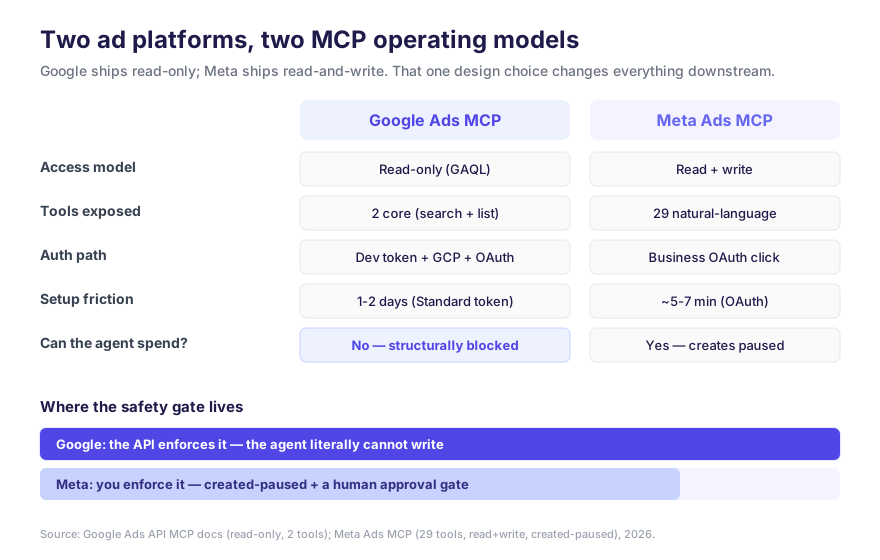
Meta's bet: write access with a soft gate. Meta's MCP exposes 29 tools including campaign, ad-set, and ad creation, behind a one-click Business OAuth. Everything an agent creates lands paused, and a human flips the switch — but that's a convention, and the CLI companion even creates active by default unless you pass --status PAUSED. The agent can spend; you trust the workflow not to.
Google's bet: no write access at all. The agent reads everything and writes nothing, full stop. There is no "remember to keep it paused," no scope-escalation footgun, no created-active gotcha — because the API rejects the write outright. The safety gate is moved from your discipline into the protocol. As Google's own docs put it, "the read-only boundary is the safety model."
Which is better depends entirely on what you want the agent to do:
| If you want… | Google read-only | Meta read-write |
|---|---|---|
| An agent that analyzes and recommends, never touches spend | Ideal — safety is guaranteed | Possible, but you enforce it |
| An agent that executes edits end-to-end | Not possible — writes go through a separate REST workflow | Built for it (with created-paused) |
| Lowest blast radius by default | Wins — structurally can't hurt you | Depends on your guardrails |
| Fastest to a live connection | Slower (token + GCP + OAuth) | Faster (one OAuth click) |
For ad teams, the practical read is that Google's MCP is a superb diagnostic and reporting brain that you pair with a separate, audited write path — while Meta's is a single connector that both observes and acts. Neither is strictly better; they imply different agent designs. The full head-to-head — tool-by-tool, setup-by-setup, and which to reach for by use case — is in Google Ads MCP vs Meta Ads MCP.
The connector landscape: official isn't the only option
Google's free server isn't the only Google Ads MCP, and for some teams it isn't the fastest path to value. Because the official server is read-only and carries the developer-token tax, a market of hosted and community connectors has grown around it (GoMarble, Adspirer):
- Official Google server — free, read-only, two tools, full GAQL power. Best when you want zero vendor in the loop and can pay the setup tax once.
- Community forks (e.g. google-marketing-solutions/google_ads_mcp) — add GAQL-helper tools to improve query accuracy; still read-only, still self-hosted.
- Hosted connectors (GoMarble, Pipeboard, Adspirer, Composio) — trade a subscription for skipping the developer-token and GCP setup, multi-platform auth (Google and Meta in one connection), and in some cases a write path Google's own server won't give you.
Setup time is the wrong headline metric — you connect a Google Ads MCP once, then live with its auth model, data scope, and agent fit for as long as you run it. The full field, ranked by what actually matters (data coverage, agent fit, auth resilience, cost, setup), is in Best MCP Servers for Google Ads, Ranked.
The honest limitations (read before you trust it)
This is where most page-one articles go thin. The consolidated list:
- It cannot do anything. Worth restating: it's strictly read-only. Any "the agent optimized my campaigns" workflow needs a separate, non-MCP write path. The MCP recommends; it never executes.
- GAQL accuracy isn't free. With only a
searchtool, every answer is a model-written GAQL query. A wrong field name or a missing date segment yields an error or — worse — confidently wrong numbers. Pin date ranges and verify schema; this is why helper-tool forks exist. - The developer-token gate is real. Basic access is test-accounts-only and throttled; Standard access takes 1–2 business days to approve. You can't query production data until it clears.
- It can't see your creative. Like Meta's, the tools read structured fields and metrics, not images, video, or landing-page experience — no judgment on the creative itself, only on its numbers.
- No access to Google's optimization brain. Smart Bidding internals, Performance Max asset selection, and the auction are off-limits. The agent reads outcomes, not the algorithm.
- Auth is brittle for solo OAuth. Refresh tokens can be revoked and force a re-consent; teams should prefer service-account auth, but switching modes means reconfiguring every client.
The upside of the read-only design is that limitation #1 makes the rest low-stakes: an agent that can't write can't cost you anything beyond a wrong recommendation you choose to ignore. That's the whole point of where Google put the gate.
The agent operating model the tools imply
A two-tool, read-only, GAQL-driven connector implies a very specific agent — a diagnostician, not an operator. The loop that follows:
- Connect once, at the account scope you need. Developer token + OAuth (or service account), Standard access for production. There is no "scope tier" decision the way Meta has — read-only is the only mode.
- Ask in plain language; let GAQL do the work. "Which campaigns lost impression share to budget last week?" becomes a
searchquery. Always pin the date range and breakdown so the model can't backfill a hallucinated number. - Get a recommendation, then act through your own gated write path. The MCP hands you the diagnosis; a human (or a separate, audited automation) makes the change in Google Ads. Nothing the MCP touches can move spend.
The point: because the connector gives everyone the same read-only verbs, the value isn't access — it's the judgment in the questions you ask and the discipline of the write path you pair it with. Read access is table stakes; a trustworthy act-on-it workflow is the moat.
A real, tiered GAQL prompt library
The honest gap in most "how to use the Google Ads MCP" content is that it stops at "now you can ask it anything!" — which is useless, because a blank prompt box is paralyzing. So here's the prompt set we actually run, organized by how deep you're going. Think of it as a ladder: triage every day, diagnose when a number moves, decide once a week.
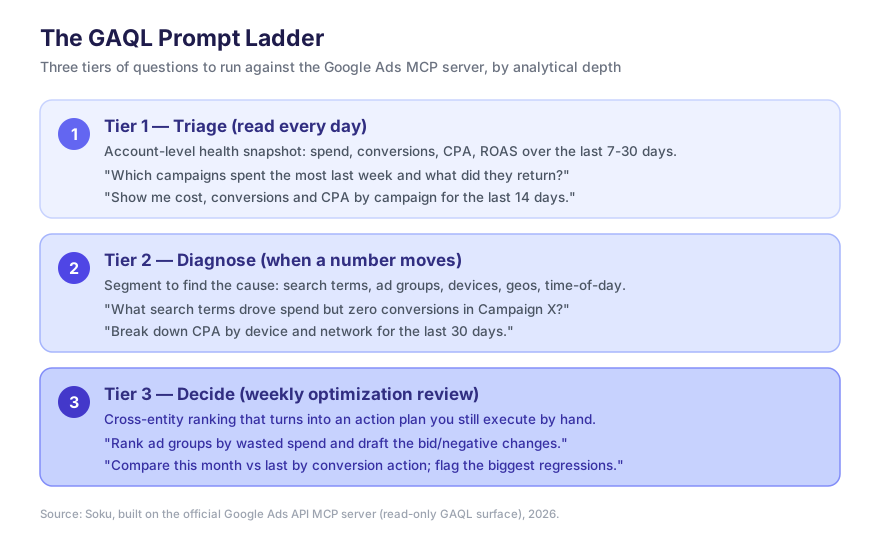
Tier 1 — Triage (your daily 60-second read)
These are account-level pulse checks. Run them every morning; they tell you whether anything needs attention before you open the dashboard.
- "Show me total cost, conversions, and CPA for the whole account over the last 7 days vs the previous 7 days."
- "Which campaigns spent the most yesterday, and what did each return?"
- "List any campaigns with spend above $100 and zero conversions in the last 3 days."
- "What's my account-wide ROAS this month so far?"
Tier 2 — Diagnose (when a number moves the wrong way)
When triage flags something, you segment to find the cause. This is where GAQL's join-like FROM resources earn their keep.
- "For Campaign X, show the search terms that spent money but produced no conversions in the last 14 days."
- "Break down CPA by device and network for Campaign X over the last 30 days."
- "Which ad groups in this campaign have a CTR below the campaign average?"
- "Show conversions by hour of day for the last 14 days — when are we wasting budget?"
- "List keywords with quality score below 5 that are still spending."
Tier 3 — Decide (your weekly optimization review)
These are cross-entity, ranked questions that turn data into an action plan. The assistant can't apply the changes (read-only), but it can draft them — and a drafted change list is 80% of the work.
- "Rank every ad group by wasted spend (cost on zero-conversion search terms) and draft the negative keywords I should add."
- "Compare this month vs last month by conversion action, and flag the three biggest regressions with a likely cause."
- "Which campaigns are budget-constrained (lost impression share due to budget) and how much extra spend would it take to close the gap?"
- "Build me a prioritized optimization list: top 10 changes ranked by estimated savings."
The Tier-3 prompts are the ones that justify the whole setup. They compress what used to be an hour of pivot-tables into a single conversation — and because the output is a proposal you review, the read-only boundary becomes a feature, not a friction.
How Soku fits
Soku is itself an ad-automation agent with a human-in-the-loop approval model, so it treats Google's read-only MCP as exactly what it's good for — the diagnostic layer — and supplies the part Google's server deliberately leaves out: a gated write path. From the top-level Integrations entry in the sidebar, the Google Ads card sits under Bring Your Own alongside Meta Ads, GA4, and TikTok, and connecting runs the OAuth flow once.
After you connect, Soku reads your account the way the MCP does — GAQL under the hood, plain-language questions on top — surfaces the anomalies and recommendations, and then routes any change through an approval gate where a human signs off before a single edit reaches the account. You assign each ad account to one or more brands, so one agent operates a whole client roster without ever pointing the wrong account at the wrong brand. The read-only MCP gives an assistant the Google verbs; the agent layer decides which account belongs to which brand, keeps a human gate on spend, and enforces the read→diagnose→approve→act discipline above.
Where to go next
This page is the map. For the full treatment of each sub-topic, follow the deep dive that matches your intent:
- Understand what it changes → Google's Official Ads MCP: What It Means for AI Ad Teams — the strategic read on a read-only first-party connector and how it reshapes the ad-team workflow.
- Connect through Claude → How to Connect Claude to Google Ads — Claude Desktop / Claude.ai / Claude Code config and the prompt patterns that get clean GAQL.
- Pick the right connector → Best MCP Servers for Google Ads, Ranked — official vs. community forks vs. hosted connectors, weighted by what actually matters.
- Compare it to Meta → Google Ads MCP vs Meta Ads MCP — the read-only-vs-read-write head-to-head, tool by tool.
- Doing Meta too? → Meta Ads MCP: The Complete Guide — the sister pillar for Meta's 29-tool, read-and-write connector.
- On TikTok as well? → TikTok Ads MCP: Official Status, Setup, and Limits — where TikTok's official Ads MCP and Agentic Hub stand today, and how they compare with Google and Meta.
- Watching Google's automation roadmap? → Google Ads AI Max DSA migration timeline — what the delayed DSA → AI Max automigration means for accounts an agent monitors over GAQL.
FAQ
What is the Google Ads MCP?
An official MCP server Google released on April 28, 2026, that exposes the Google Ads API to AI assistants through two core tools — list_accessible_customers and a GAQL-powered search — so an agent can query your account in plain language. It is strictly read-only.
Is the Google Ads MCP read-only?
Yes. Per Google's docs it is strictly read-only and "cannot modify bids, pause campaigns, or create new assets." Any write must go through a separate REST workflow outside the MCP. That read-only boundary is the safety model.
How is it different from the Meta Ads MCP?
Google's MCP is read-only with 2 tools and a developer-token + GCP + OAuth setup; Meta's is read-and-write with 29 tools and a one-click Business OAuth. Google moves the safety gate into the API; Meta relies on created-paused plus your discipline. Full comparison here.
What do I need to set it up?
A 22-character developer token (with Standard access for production — 1–2 business days to approve), a Google Cloud project with the Ads API enabled, and OAuth or service-account credentials, plus a refresh token minted from the OAuth flow. The step-by-step is in the six setup steps above.
Which AI clients does it work with?
Claude Desktop, Claude Code, Gemini CLI, Cursor, and Windsurf — each with a different config path but the same server logic. For Claude specifically, see the connect guide.